Basics commands
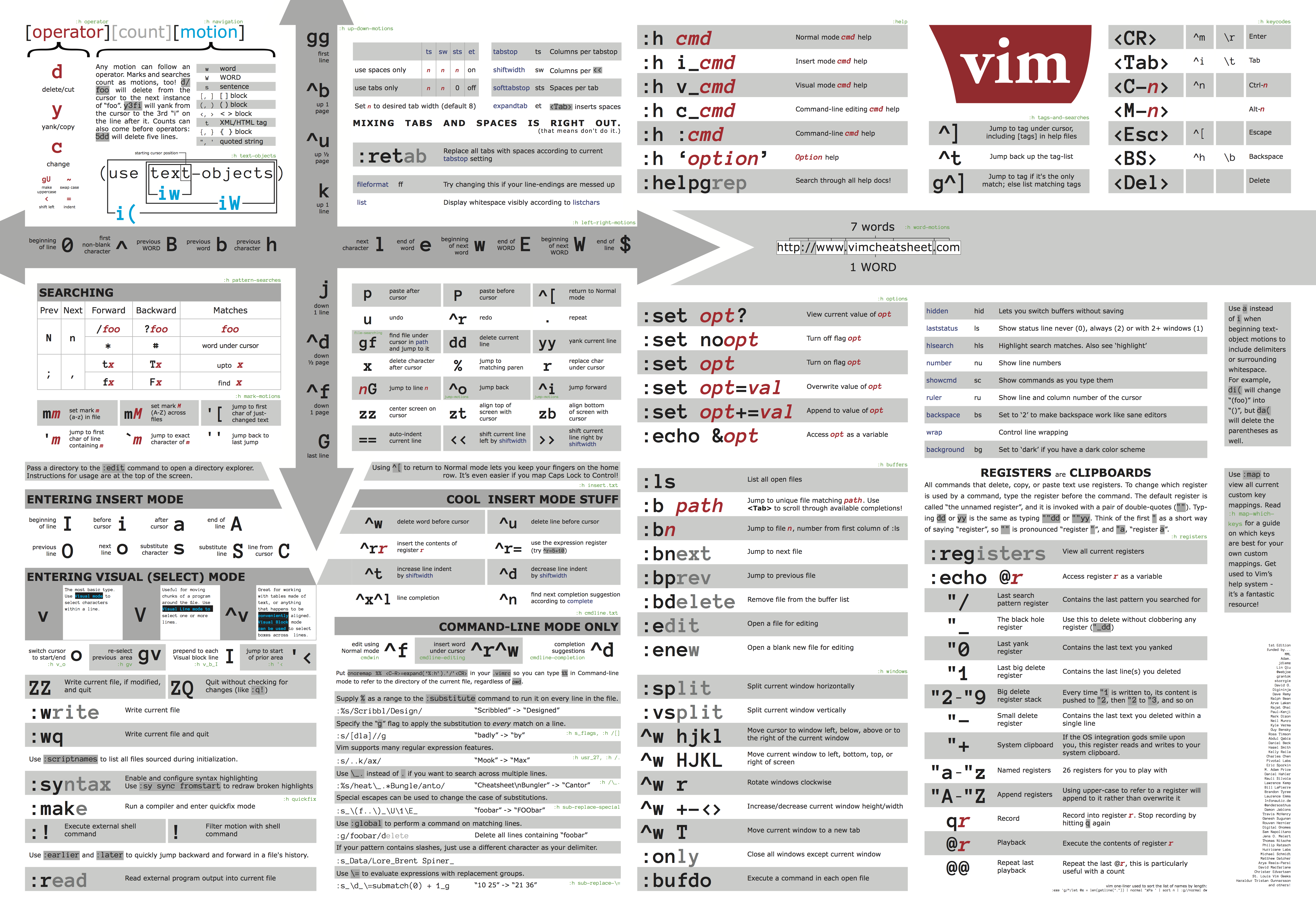
Advanced commands
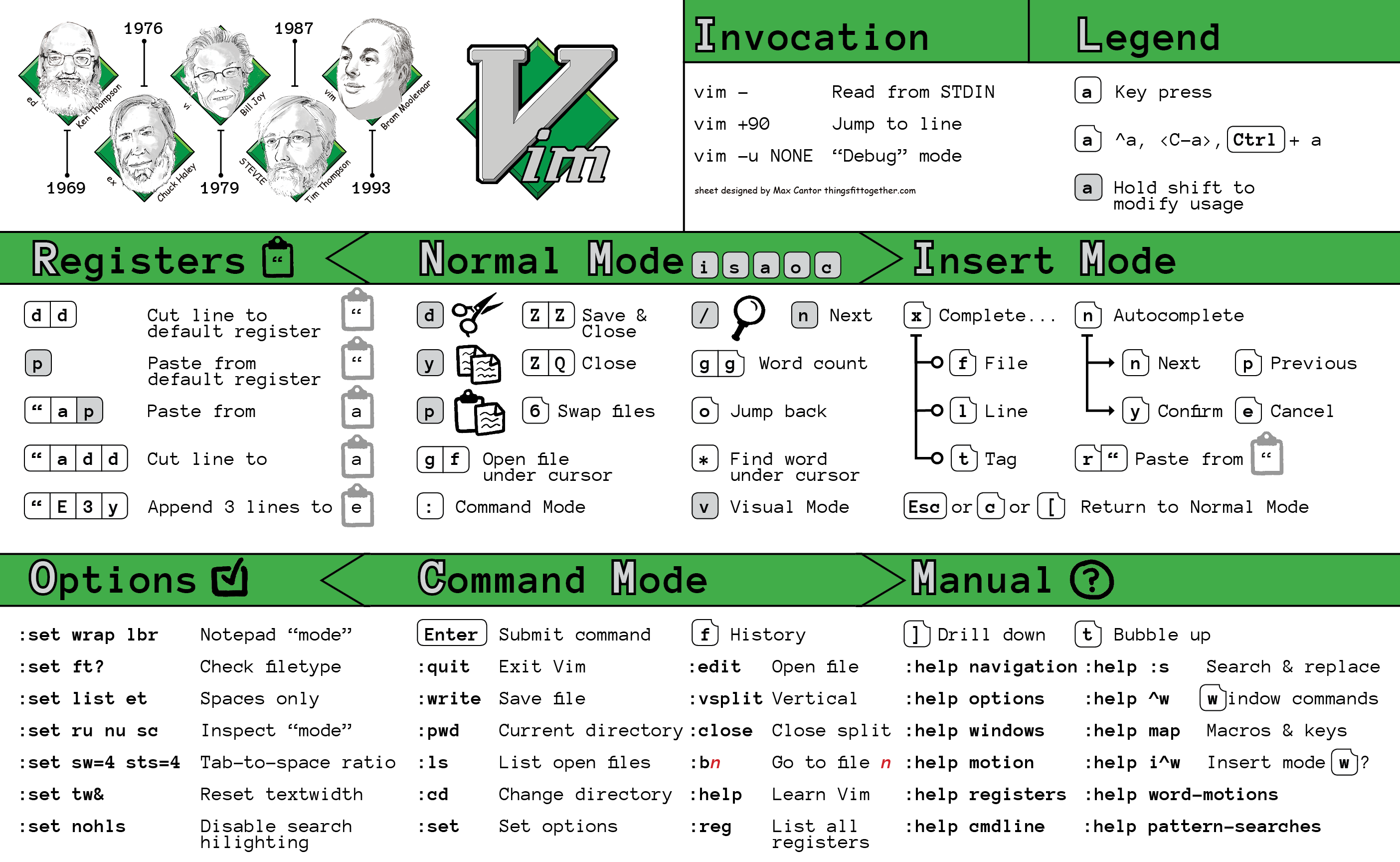
Essentials
Cursor movement (Normal/Visual Mode)
-
hjkl- Arrow keys -
w/b- Next/previous word -
W/B- Next/previous word (space seperated) -
e/ge- Next/previous end of word -
0/$- Start/End of line -
^- First non-blank character of line (same as 0w)
Editing text
-
i/a- Start insert mode at/after cursor -
I/A- Start insert mode at the beginning/end of the line -
o/O- Add blank line below/above current line -
EscorCtrl+[- Exit insert mode -
d- Delete -
dd- Delete line -
c- Delete, then start insert mode -
cc- Delete line, then start insert mode
Operators
- Operators also work in Visual Mode
-
d- Deletes from the cursor to the movement location -
c- Deletes from the cursor to the movement location, then starts insert mode -
y- Copy from the cursor to the movement location -
>- Indent one level -
<- Unindent one level - You can also combine operators with motions. Ex: d$ deletes from the cursor to the end of the line.
Marking text (visual mode)
-
v- Start visual mode -
V- Start linewise visual mode -
Ctrl+v- Start visual block mode -
EscorCtrl+[- Exit visual mode
Clipboard
-
yy- Yank (copy) a line -
p- Paste after cursor -
P- Paste before cursor -
dd- Delete (cut) a line -
x- Delete (cut) current character -
X- Delete (cut) previous character -
d/c- By default, these copy the deleted text
Exiting
-
:w- Write (save) the file, but don’t quit -
:wq- Write (save) and quit -
:q- Quit (fails if anything has changed) -
:q!- Quit and throw away changes
Search/Replace
-
/pattern- Search for pattern -
?pattern- Search backward for pattern -
n- Repeat search in same direction -
N- Repeat search in opposite direction -
:%s/old/new/g- Replace all old with new throughout file (gn is better though) -
:%s/old/new/gc- Replace all old with new throughout file with confirmations
General
-
u- Undo -
Ctrl+r- Redo
Advanced
Cursor movement
-
Ctrl+d- Move down half a page -
Ctrl+u- Move up half a page -
}- Go forward by paragraph (the next blank line) -
{- Go backward by paragraph (the next blank line) -
gg- Go to the top of the page -
G- Go the bottom of the page -
: [num] [enter]- Go to that line in the document -
ctrl+e / ctrl+y- Scroll down/up one line
Character search
-
f [char]- Move forward to the given char -
F [char]- Move backward to the given char -
t [char]- Move forward to before the given char -
T [char]- Move backward to before the given char -
; / ,- Repeat search forwards/backwards
Editing text
-
J- Join line below to the current one -
r[char] - Replace a single character with the specified char (does not use Insert mode)
Visual mode
-
O- Move to other corner of block -
o- Move to other end of marked area
File Tabs
-
:efilename - Edit a file -
:tabe- Make a new tab -
gt- Go to the next tab -
gT- Go to the previous tab -
:vsp- Vertically split windows -
ctrl+ws- Split windows horizontally -
ctrl+wv- Split windows vertically -
ctrl+ww- Switch between windows -
ctrl+wq- Quit a window
Marks
- Marks allow you to jump to designated points in your code.
-
m{a-z}- Set mark {a-z} at cursor position - A capital mark {A-Z} sets a global mark and will work between files
-
'{a-z}- Move the cursor to the start of the line where the mark was set -
''- Go back to the previous jump location
Text Objects
- Say you have
def (arg1, arg2, arg3), where your cursor is somewhere in the middle of the parenthesis. -
di(deletes everything between the parenthesis. That says “change everything inside the nearest parenthesis”. Without text objects, you would need to doT(dt). - Learn more
General
-
.- Repeat last command -
Ctrl+r + 0in insert mode inserts the last yanked text (or in command mode) -
gv- reselect (select last selected block of text, from visual mode) -
%- jumps between matching () or {}